

How to Connect Your Phone to Hyundai Infotainment: A Quick Guide
Hyundai Bluetooth integration is designed to improve safety, convenience, and connectivity while you drive. With hands-free calling and wireless media streaming, you can stay connected without taking your attention off the road. This is especially helpful for drivers navigating busy roads around Columbia, South Carolina.
This step-by-step guide from Stivers Hyundai explains how to connect Hyundai Bluetooth, troubleshoot common issues, and get the most out of your vehicle’s infotainment system. If you need assistance, our team is here to help with car repair and technology support in Columbia, SC.
Step-by-Step Instructions for Pairing Your Phone
Pairing your phone with Hyundai Bluetooth allows your device and vehicle to communicate wirelessly. Once paired, your phone can automatically reconnect each time you enter your vehicle.
- Open your phone’s Settings app
- Select Bluetooth and turn it on
- Start your Hyundai and keep it in PARK
- Press Setup on the infotainment screen
- Select Bluetooth → Bluetooth Connection
- Tap Add New
- Select your vehicle from your phone’s device list
- Enter the passcode shown on your Hyundai screen
- Confirm pairing on both your phone and infotainment system
Once connected, your phone will automatically sync contacts and allow hands-free calling.
How to Connect an iPhone to Hyundai Bluetooth
Connecting an iPhone follows the same general process, but you’ll want to enable additional permissions for full functionality.
- Go to Settings → Bluetooth on your iPhone
- Turn Bluetooth on
- Select your Hyundai from available devices
- Enter the passcode displayed on your screen
- Tap the “i” icon and enable Contacts Sync
This allows your Hyundai system to access your contacts, call history, and media for a seamless experience.
How to Connect an Android Phone to Hyundai Bluetooth
Android pairing is similar, though menu options may vary slightly depending on your device.
- Open Settings → Bluetooth on your Android
- Turn Bluetooth on
- Select your Hyundai vehicle
- Enter the passcode displayed
- Confirm permissions for contacts and media
After pairing, you can select Bluetooth Audio from your infotainment system to begin streaming music.
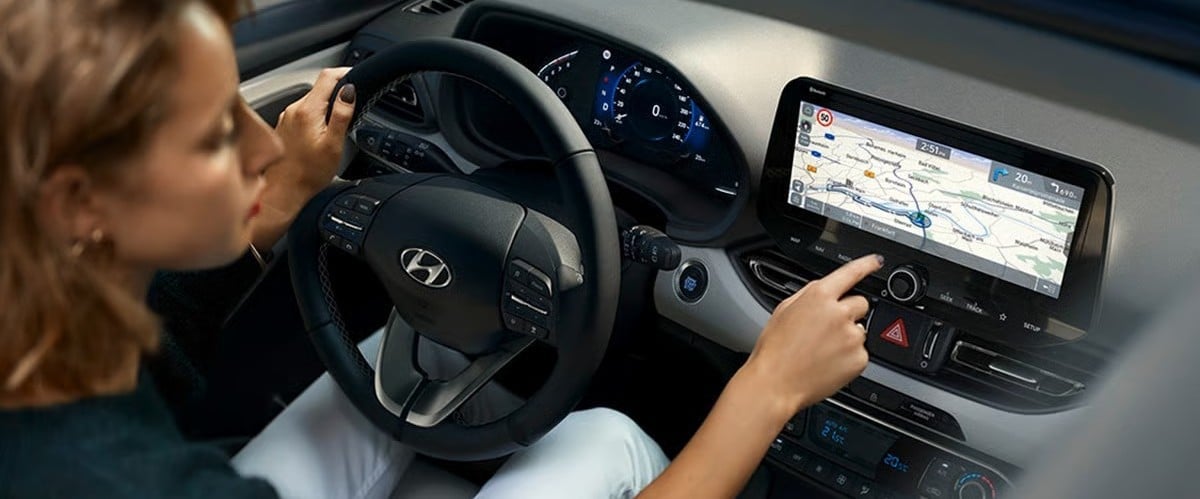
Using Hyundai Bluetooth for Music and Calls
Once your phone is connected, Hyundai Bluetooth allows you to:
- Stream music from apps like Spotify or Apple Music
- Make and receive hands-free calls
- Use voice commands for navigation and media
- Access Apple CarPlay or Android Auto (if equipped)
This creates a safer driving experience by minimizing distractions and keeping your hands on the wheel.
Troubleshooting Hyundai Bluetooth Connection Issues
If your Hyundai Bluetooth is not working correctly, try these steps:
- Restart your phone and vehicle system
- Turn Bluetooth off and back on
- Remove old or unused paired devices
- Ensure your phone software is updated
- Confirm your device is within range
If problems continue, our team at Stivers Hyundai can diagnose and resolve connectivity issues quickly.
Hyundai Bluetooth FAQs
How do I connect my phone to Hyundai Bluetooth?
Turn on Bluetooth on your phone, go to your Hyundai infotainment system, select Bluetooth settings, and pair your device using the displayed passcode.
Why is my Hyundai Bluetooth not connecting?
This can be caused by device compatibility, outdated software, or too many paired devices. Restarting your system usually helps.
Can I connect multiple phones?
Yes, Hyundai systems can store multiple devices and allow you to switch between them.
Can I stream music through Bluetooth?
Yes, you can stream music, podcasts, and audio apps once your phone is paired.
Does Hyundai Bluetooth support hands-free calling?
Yes, it allows safe calling with voice commands and steering wheel controls.
Get Hyundai Bluetooth Help at Stivers Hyundai
If you need help connecting your phone or troubleshooting Bluetooth issues, Stivers Hyundai is here to help. Our team can walk you through setup or diagnose any system concerns.
Call 803-788-6800, contact us online, or visit our dealership in Columbia, SC.
Images by OEM
0 comment(s) so far on How to Connect Your Phone to Hyundai Infotainment: A Quick Guide