

How to Use Android Auto Wireless in the 2026 Hyundai Tucson
Cables are quietly becoming irrelevant, and the 2026 Hyundai Tucson is fully on board with that. Wireless Android Auto is built right in, so whether you’re navigating an unfamiliar route, streaming a playlist, or sending a hands-free reply to a text, your phone stays connected to your drive without anything plugged in.
If you’ve been trying to figure out how Hyundai Android Auto wireless works or how to get it running, this guide covers the whole thing. Browse our 2026 Tucson inventory to see what’s currently available in Columbia, SC.
Wireless Android Auto Comes Standard on Every 2026 Hyundai Tucson Trim
You don’t have to buy up to get wireless Android Auto in the 2026 Tucson. Hyundai includes it standard across all 10 trim levels: SE, SEL, XRT, SEL Premium, and Limited, each available in FWD and AWD. Every Tucson buyer gets the same cable-free connection experience, regardless of which configuration they choose.
| Trim | Infotainment Screen | Wireless Android Auto | Wireless Apple CarPlay | Drivetrain Options | Notes |
| SE | 12.3-inch | Standard | Standard | FWD, AWD | Base trim |
| SEL | 12.3-inch | Standard | Standard | FWD, AWD | |
| XRT | 12.3-inch | Standard | Standard | FWD, AWD | Off-road styled |
| SEL Premium | 12.3-inch | Standard | Standard | FWD, AWD | |
| Limited | 12.3-inch | Standard | Standard | FWD, AWD | Top trim |
Android Phone Compatibility Requirements for Wireless Android Auto
Before jumping into setup, your phone needs to check a few boxes. Wireless Android Auto is compatible with any phone running Android 11.0 or later, Google or Samsung phones running Android 10.0, or a Samsung Galaxy S8, S8+, or Note 8 running Android 9.0, so it’s worth confirming your device is running a compatible version. You’ll also need the Android Auto app installed and kept current through the Google Play Store.
Both Bluetooth and Wi-Fi need to be active on your phone. Wireless Android Auto also requires 5 GHz Wi-Fi support on your device. Bluetooth handles the initial pairing handshake; once that’s done, Wi-Fi takes over for the actual data transfer. That handoff is what lets Android Auto run without a USB cable. Most modern Android phones support both without issue, but it’s worth a quick check before your first setup attempt.
How to Set Up Wireless Android Auto in the 2026 Hyundai Tucson
The setup process is pretty simple, and the best part is you only do it once. After that, the connection happens on its own.
Step 1: Prepare Your Phone
- Enable Bluetooth and Wi-Fi on your phone.
- Open the Android Auto app and confirm wireless connections are enabled in its settings.
- Verify that required permissions are active, including contacts, phone, and location access.
Step 2: Pair Through the 12.3-Inch Touchscreen
- With the ignition on, navigate to \[Setup\] > \[Device Connections\] on the 12.3-inch touchscreen.
- Press \[Add New\] to begin pairing.
- A verification code will appear on both the infotainment screen and your phone. Confirm the codes match on both devices to complete the secure connection.
- Once confirmed, Android Auto will launch on the display.
After that initial pairing, the Tucson will recognize your phone automatically whenever it’s in range and the vehicle starts. No cables, no repeat steps.
Have questions before you visit? Contact our team or stop by for a hands-on demo and we’ll walk you through it in person.
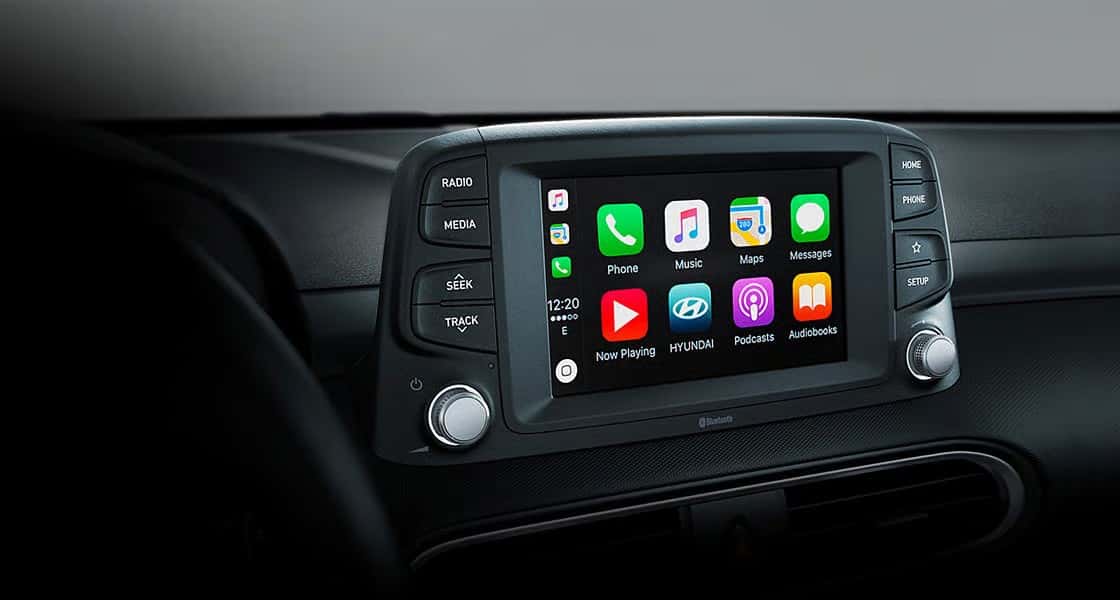
What You Can Do With Android Auto on the Tucson’s 12.3-Inch Display
The 12.3-inch touchscreen gives Android Auto a lot of room to work with. Here’s what you get once you’re connected:
- Google Maps and Waze project directly onto the display with turn-by-turn directions and real-time traffic updates.
- Spotify and YouTube Music stream through the interface so you can manage audio without picking up your phone.
- Hands-free calls and texts work through Google Assistant, which reads messages aloud and sends replies by voice.
- Google Assistant handles route adjustments, contact calls, and playback controls without requiring you to look away from the road.
The interface is intentionally stripped down compared to your phone’s home screen. That’s by design. Fewer distractions, with the most-used functions right where you need them.
Troubleshooting Wireless Android Auto Connection Issues
Even with everything updated, wireless connections can occasionally hit a snag. Here are the two most common problems and how to sort them out.
Phone Not Detected or Pairing Fails
- Verify that wireless Android Auto is enabled in your phone’s Android Auto app settings.
- Restart the phone, then restart the infotainment system: turn the engine off, wait 30 seconds, and restart.
- Go to your phone’s Bluetooth settings, forget the vehicle entirely, and re-pair from scratch using the \[Setup\] > \[Device Connections\] > \[Add New\] path.
- Confirm your Android version meets the minimum requirement (Android 11.0 or later, Google or Samsung phones with Android 10.0, or Samsung Galaxy S8, S8+, or Note 8 with Android 9.0) and that the Android Auto app is fully up to date.
Connection Drops or Signal Is Unstable
- Move your phone closer to the infotainment system to reduce signal distance.
- Restart the Android Auto connection through the touchscreen menu.
- Update your phone’s operating system and the Android Auto app, since updates frequently include connectivity fixes.
- Clear the Android Auto app cache in your phone’s application settings to remove corrupted data that can cause instability.
When Should You Ask a Hyundai Technician for Help?
If your phone connects to Bluetooth but Android Auto never launches, the connection repeatedly drops after resetting both devices, or the touchscreen shows an error message after you have confirmed phone compatibility and software updates, it is time for a technician to take a closer look. Bring the phone you normally use and note any message shown on the display so the concern can be reproduced.
For help with infotainment setup, software-related questions, or a connection issue that persists after the troubleshooting steps above, schedule Hyundai service and let the advisor know the concern involves wireless Android Auto.
See the 2026 Tucson’s Tech Features in Person at Stivers Hyundai
Visit Us for a Hands-On Demo
Reading about Android Auto for the Hyundai Tucson only takes you so far. Seeing it running on that 12.3-inch display is a genuinely different experience. At Stivers Hyundai in Columbia, SC, you can explore the 2026 Tucson’s full tech package firsthand, connect your own phone, and get a real feel for how wireless Android Auto fits into your everyday routine.
Our team is happy to walk you through setup, answer questions about trim differences, and help you figure out which Tucson configuration makes the most sense for you. We also offer financing options to help make the purchase process straightforward.
Get in Touch
Visit us at 9950 Farrow Rd, Columbia, SC 29203, Monday through Friday from 9:00 a.m. to 7:00 p.m., or Saturday from 9:00 a.m. to 6:00 p.m. You can also contact us online to ask questions or schedule a test drive. The 2026 Tucson tends to make a strong first impression, and a test drive is the best way to see why.
Images by OEM
0 comment(s) so far on How to Use Android Auto Wireless in the 2026 Hyundai Tucson